使用 Nginx 和 Apache2 配置反向代理

反向代理是一种服务器配置方式,用来代理和转发客户端的请求到后端服务器上。它可以在负载均衡、缓存、加速、安全性等方面提供帮助。常见的反向代理服务器有 Nginx 和 Apache2。本文将详细讲解如何使用 Nginx 和 Apache2 来配置反向代理,将请求代理到不同的端口或服务器上。


1. 什么是反向代理

反向代理(Reverse Proxy)是代理服务器的一种形式,客户端并不知道其实际请求的是哪一台服务器,而是通过代理服务器将请求转发到后端的不同服务器或服务上。反向代理的主要用途包括:

  • 隐藏后端服务器的 IP 和端口,增强安全性。
  • 负载均衡,分发请求到多台后端服务器。
  • SSL/TLS 卸载,在代理服务器处理 SSL 连接,减少后端服务器的计算负担。
  • 缓存,提升性能,减少后端服务器压力。

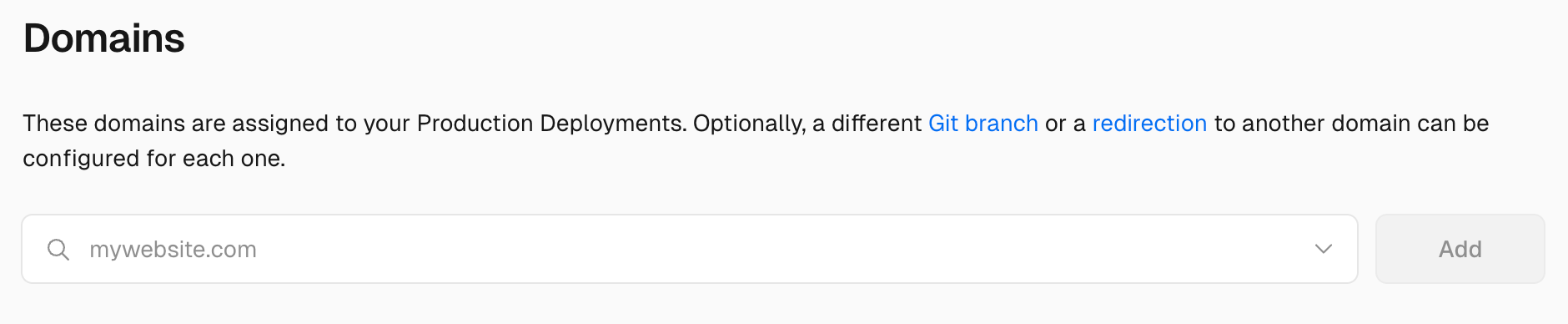
例如,假设你有一个后端应用运行在 http://MY_IP_ADDRESS:1200,你希望通过你的域名 example.com 访问该服务,而无需用户输入端口号 1200。这时就可以使用反向代理。


2. 使用 Nginx 配置反向代理

2.1 安装 Nginx

首先,你需要在服务器上安装 Nginx。如果还未安装,可以通过以下命令进行安装:

Debian/Ubuntu:

1
2
sudo apt update
sudo apt install nginx

CentOS:

1
2
sudo yum install epel-release
sudo yum install nginx

2.2 配置 Nginx 反向代理

安装完成后,你需要编辑 Nginx 的配置文件,通常位于 /etc/nginx/sites-available//etc/nginx/conf.d/

  1. 创建或编辑配置文件(例如 /etc/nginx/sites-available/example.com):
1
sudo nano /etc/nginx/sites-available/example.com
  1. 添加如下配置,将流量从域名 example.com 代理到 http://MY_IP_ADDRESS:1200
1
2
3
4
5
6
7
8
9
10
11
12
server {
listen 80;
server_name example.com;

location / {
proxy_pass http://MY_IP_ADDRESS:1200;
proxy_set_header Host $host;
proxy_set_header X-Real-IP $remote_addr;
proxy_set_header X-Forwarded-For $proxy_add_x_forwarded_for;
proxy_set_header X-Forwarded-Proto $scheme;
}
}
  1. 启用站点配置(适用于 Debian/Ubuntu):
1
sudo ln -s /etc/nginx/sites-available/example.com /etc/nginx/sites-enabled/
  1. 检查 Nginx 配置语法是否正确:
1
sudo nginx -t
  1. 重启 Nginx 使配置生效:
1
sudo systemctl restart nginx

2.3 配置 HTTPS (可选)

如果你希望通过 HTTPS 访问,可以使用 Let’s Encrypt 免费获取 SSL 证书。

  1. 安装 certbot
1
sudo apt install certbot python3-certbot-nginx
  1. 获取并配置 SSL 证书:
1
sudo certbot --nginx -d example.com
  1. 按照提示操作完成 HTTPS 配置。

3. 使用 Apache2 配置反向代理

3.1 安装 Apache2

如果你的服务器上还没有安装 Apache2,首先需要安装:

Debian/Ubuntu:

1
2
sudo apt update
sudo apt install apache2

CentOS:

1
sudo yum install httpd

3.2 启用必要的 Apache 模块

在 Apache 中,反向代理功能通过模块来实现。你需要启用以下模块:

1
2
3
sudo a2enmod proxy
sudo a2enmod proxy_http
sudo a2enmod headers

3.3 配置 Apache2 反向代理

  1. 编辑 Apache2 配置文件(例如 /etc/apache2/sites-available/example.com.conf):
1
sudo nano /etc/apache2/sites-available/example.com.conf
  1. 添加如下配置:
1
2
3
4
5
6
7
8
9
10
<VirtualHost *:80>
ServerName example.com

ProxyPreserveHost On
ProxyPass / http://MY_IP_ADDRESS:1200/
ProxyPassReverse / http://MY_IP_ADDRESS:1200/

ErrorLog ${APACHE_LOG_DIR}/error.log
CustomLog ${APACHE_LOG_DIR}/access.log combined
</VirtualHost>
  1. 启用站点配置:
1
sudo a2ensite example.com.conf
  1. 检查配置是否正确:
1
sudo apachectl configtest
  1. 重启 Apache 使配置生效:
1
sudo systemctl restart apache2

3.4 配置 HTTPS (可选)

与 Nginx 类似,你也可以通过 certbot 获取 SSL 证书。

  1. 安装 certbot
1
sudo apt install certbot python3-certbot-apache
  1. 获取并配置 SSL 证书:
1
sudo certbot --apache -d example.com
  1. 按照提示操作完成 HTTPS 配置。

4. 常见问题排查

4.1 检查代理设置是否生效

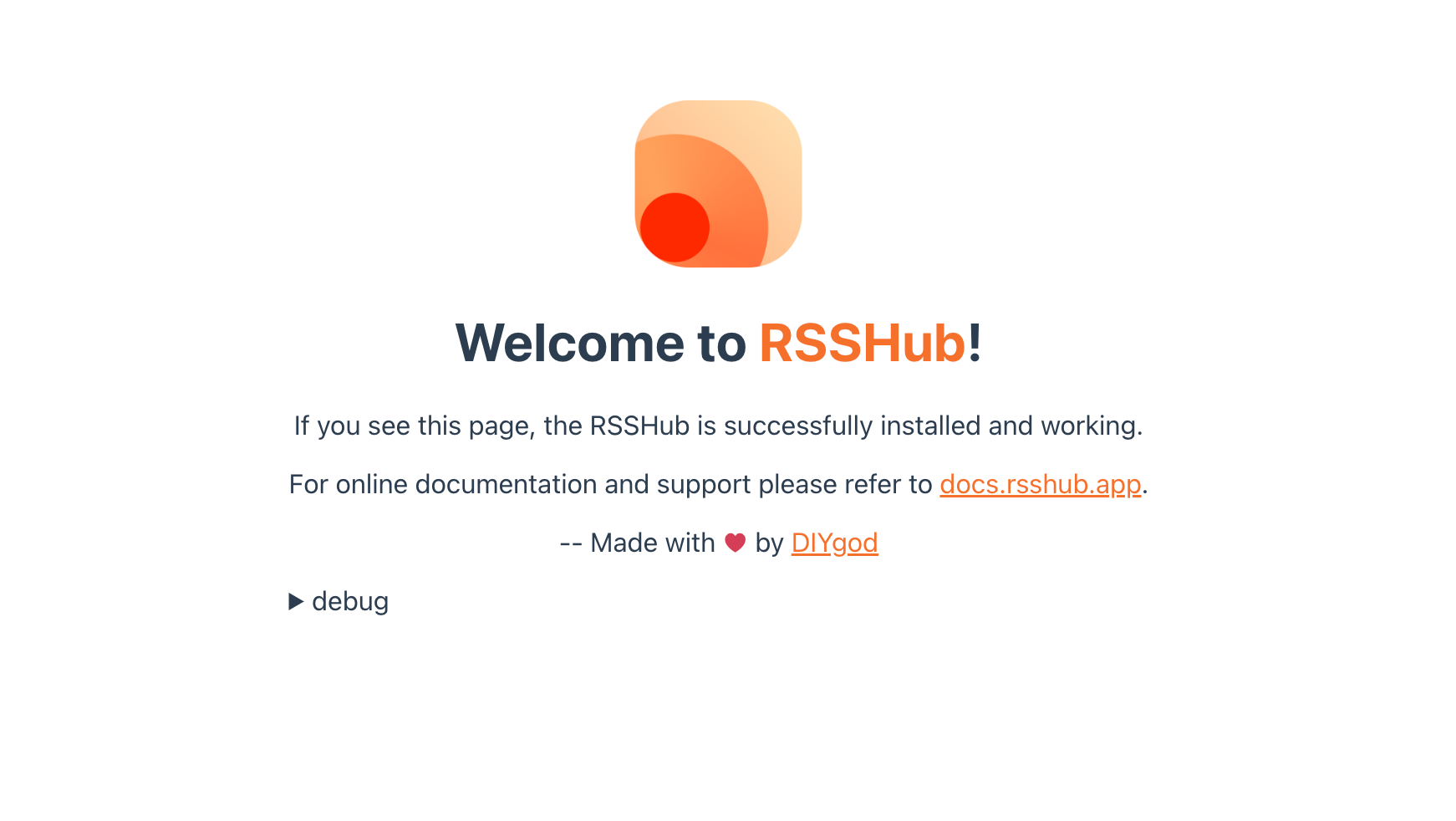
通过浏览器访问你的域名(http://example.com),如果显示正确的后端内容,说明反向代理配置成功。如果出现问题,检查以下内容:

  • 端口问题:确保后端服务器监听的端口是正确的。
  • 防火墙设置:确认服务器的防火墙允许访问相关端口(80、443 和 1200)。
  • Nginx/Apache 配置错误:使用 nginx -tapachectl configtest 检查配置文件是否正确。

4.2 日志排查

如果代理未生效,可以查看 Nginx 或 Apache 的日志,通常位于:

  • Nginx/var/log/nginx/error.log
  • Apache/var/log/apache2/error.log

5. 总结

配置反向代理能够极大提升你服务器的灵活性与安全性。Nginx 和 Apache2 都提供了强大的反向代理功能,适合在各种场景下使用。Nginx 通常适用于高性能、低资源的环境,而 Apache 则提供了丰富的模块和配置选项。

通过本文的详细步骤,你应该能够成功配置反向代理,让你的域名能够代理和转发流量到不同的服务器和端口上。如果你希望进一步提升安全性,还可以添加 HTTPS 支持并启用缓存和负载均衡功能。

Apache配置指南及常见问题排查

Apache 是最流行的 Web 服务器之一,广泛用于托管各种网站和应用。它支持虚拟主机(VirtualHost)功能,可以让你在一台服务器上托管多个域名或站点。本文将分为两部分:

  1. 如何配置 Apache 虚拟主机。
  2. 如何排查和修复常见的配置错误。

1. Apache 基础配置概述

Apache 的配置文件通常位于 /etc/apache2/ 目录下。核心配置文件是 apache2.conf,但我们主要操作的是位于 /etc/apache2/sites-available//etc/apache2/sites-enabled/ 中的虚拟主机配置文件。

1.1 Apache 虚拟主机配置

虚拟主机(VirtualHost)允许你使用一台服务器来托管多个网站。这通过配置不同的域名来将用户请求指向不同的网站目录。

基本的虚拟主机配置示例

1
2
3
4
5
6
7
8
9
10
11
12
13
14
15
<VirtualHost *:80>
ServerAdmin webmaster@yourdomain.com
ServerName yourdomain.com
ServerAlias www.yourdomain.com

DocumentRoot /var/www/html/yourdomain
<Directory /var/www/html/yourdomain/>
Options Indexes FollowSymLinks
AllowOverride All
Require all granted
</Directory>

ErrorLog ${APACHE_LOG_DIR}/error.log
CustomLog ${APACHE_LOG_DIR}/access.log combined
</VirtualHost>

1.2 配置项解释

  • <VirtualHost *:80>:定义虚拟主机,监听所有 IP 地址的 80 端口(HTTP)。如果需要 HTTPS,使用 *:443

  • ServerAdmin webmaster@yourdomain.com:管理员邮箱,用于在出现服务器错误时显示联系信息。

  • ServerName yourdomain.com:定义主机名,即用户访问的网站的域名。

  • ServerAlias www.yourdomain.com:为当前虚拟主机配置别名,比如 www 开头的域名。

  • DocumentRoot /var/www/html/yourdomain:定义网站的根目录,所有用户请求会从这个目录中查找文件并返回响应。

  • <Directory /var/www/html/yourdomain/>:指定网站根目录的访问权限配置。

    • Options Indexes FollowSymLinks:允许目录列出文件(Indexes)和符号链接(FollowSymLinks)。
    • AllowOverride All:允许使用 .htaccess 文件来覆盖目录级别的配置。
    • Require all granted:允许所有用户访问该目录。
  • ErrorLog ${APACHE_LOG_DIR}/error.log:定义错误日志的位置,存储 Apache 在运行时发生的错误。

  • CustomLog ${APACHE_LOG_DIR}/access.log combined:定义访问日志的位置,用于记录每次用户请求的信息。

1.3 启用虚拟主机配置

配置完虚拟主机文件后,执行以下命令启用虚拟主机:

1
sudo a2ensite yourdomain.com.conf

然后重新加载 Apache 服务:

1
sudo systemctl reload apache2

1.4 配置 HTTPS(可选)

要启用 HTTPS,你需要一个 SSL 证书。可以使用 Let’s Encrypt 提供免费的证书。假设已经安装了 certbot,你可以使用以下命令来获取证书并自动配置 Apache:

1
sudo certbot --apache -d yourdomain.com -d www.yourdomain.com

这会自动生成 SSL 证书,并配置 *:443 的虚拟主机,使得网站可以通过 HTTPS 访问。

2. 如何排查和修复 Apache 配置错误

在配置 Apache 时,我们可能会遇到一些常见的错误,比如语法错误、权限设置不正确或文件路径错误。接下来,我们将基于以下步骤详细讲解如何排查并修复这些问题。

2.1 检查 Apache 配置语法

Apache 提供了一个内置命令来检查配置文件的语法。在应用新的配置之前,建议先使用以下命令检查语法是否正确:

1
sudo apache2ctl configtest

如果输出 Syntax OK,表示配置文件没有语法错误。如果出现错误,Apache 会给出提示,帮助你找到并修复问题。

2.2 解决常见配置问题

问题 1:配置文件中的注释符号问题

Apache 配置文件中,# 是注释符号。如果注释符号放置不当,Apache 可能会无法正确解析指令。例如:

1
DocumentRoot /var/www/html/yourdomain  # 这是根目录

上述配置会引发语法错误,因为 Apache 会错误地将注释视为配置的一部分。修复方法是将注释放在独立的一行:

1
2
DocumentRoot /var/www/html/yourdomain
# 这是根目录

问题 2:目录权限设置不正确

如果 Apache 没有权限访问 DocumentRoot 指定的目录,网站将无法加载。通过以下命令,可以确保 Apache 有足够的权限访问相关目录:

1
2
sudo chown -R www-data:www-data /var/www/html/yourdomain
sudo chmod -R 755 /var/www/html/yourdomain
  • chown:更改文件的所有者为 www-data(Apache 默认用户)。
  • chmod 755:确保目录具有可读写权限,其他用户可以执行。

问题 3:检查 Apache 错误日志

如果 Apache 服务启动失败或虚拟主机无法工作,最好的方法是检查 Apache 的错误日志:

1
sudo tail -f /var/log/apache2/error.log

日志中会显示具体的错误原因,例如文件路径错误、权限问题等。根据错误提示可以快速定位问题。

问题 4:Apache 服务无法启动或重新加载失败

如果修改了配置文件后,Apache 无法重新加载或启动,可能是配置文件的语法问题或端口冲突。可以通过以下命令检查服务状态:

1
sudo systemctl status apache2

根据输出信息,查找具体的错误提示。

2.3 常见的虚拟主机问题及解决方案

错误:DocumentRoot takes one argument

此错误通常表示在 DocumentRoot 指令中使用了不必要的参数或注释符号不正确。确保 DocumentRoot 指令后只跟一个参数,即网站的根目录路径。例如:

1
DocumentRoot /var/www/html/yourdomain

错误:Permission denied403 Forbidden

当你在浏览器中访问网站时,如果看到 403 Forbidden 错误,通常是由于权限设置问题。请检查目录的权限,确保 Apache 能够读取文件:

1
sudo chmod -R 755 /var/www/html/yourdomain

错误:端口冲突

如果你配置了多个虚拟主机,确保每个虚拟主机监听的端口不冲突。通常,HTTP 使用端口 80,HTTPS 使用端口 443。如果两个虚拟主机使用了相同的端口,Apache 会报错。

3. 总结

通过本文的介绍,你应该能够成功配置 Apache 虚拟主机,并了解每个配置项的作用。我们还讲解了如何排查和修复常见的配置错误,帮助你快速解决 Apache 服务无法启动或虚拟主机配置问题。

关键步骤总结:

  1. 正确配置虚拟主机:包括 ServerNameDocumentRootDirectory 等指令。
  2. 检查配置文件语法:使用 apache2ctl configtest 来验证配置文件的正确性。
  3. 调整文件权限:确保 Apache 有足够的权限访问网站的根目录。
  4. 查看 Apache 日志文件:通过日志文件找到具体错误的提示,并进行修复。
  5. 启用 HTTPS:使用 Let’s Encrypt 轻松配置免费的 SSL 证书。

通过这些步骤,你将能够更好地管理和配置 Apache,并在遇到问题时快速解决它们。


希望这篇博客能帮助你更好地理解 Apache 虚拟主机的配置,并有效解决你在配置过程中遇到的问题。如果你有任何疑问或遇到特殊问题,欢迎在评论区交流。

Send Email by Python

Key_points:

  • SMTP服务器地址和端口
    • 使用TLS加密: 587
      1
      2
      server = smtplib.SMTP(smtp_server, smtp_port)
      server.starttls()
    • 使用SSL加密: 465
      1
      server = smtplib.SMTP_SSL(smtp_server, smtp_port)

代码如下:

1
2
3
4
5
6
7
8
9
10
11
12
13
14
15
16
17
18
19
20
21
22
23
24
25
26
27
28
29
30
31
32
33
34
35
36
37
38
39
import smtplib
from email.mime.text import MIMEText
from email.mime.multipart import MIMEMultipart

# 发送邮件
def send_email():
print("Preparing to send email...")
sender_email = 'your_email@example.com'
receiver_email = 'receiver_email@example.com'
password = 'your_email_password'

smtp_server = 'smtp.yourmail.com'
smtp_port = 587 # SMTP端口, 通常为587(TSL)或465(SSL)

subject = 'subject'
body = 'body'

message = MIMEMultipart()
message['From'] = sender_email
message['To'] = receiver_email
message['Subject'] = subject
message.attach(MIMEText(body, 'plain'))

try:
print("Connecting to SMTP server...")
# If you want to use SSL, use `smtplib.SMTP_SSL()` instead and remove `server.starttls()`
with smtplib.SMTP(smtp_server, smtp_port) as server:
server.starttls() # 使用TLS加密
print("Logging in to SMTP server...")
server.login(sender_email, password) # 登录
print("Sending email...")
server.sendmail(sender_email, receiver_email, message.as_string()) # 发送邮件
print("Email sent successfully.")
except Exception as e:
print(f"Email sent failed: {e}")

# 主函数
def main():
send_mail()

Configure Latex on MacOS

安装MacTex

安装VSCode插件

配置VSCode

设置默认编译器

在VSCode中,打开设置,搜索”latex-workshop.latex.recipes”,将 “args” 部分的内容修改为如下:

1
2
3
4
5
6
7
8
9
10
11
12
13
14
15
16
17
18
"name": "latexmk",
"command": "latexmk",
// "args": [
// "-synctex=1",
// "-interaction=nonstopmode",
// "-file-line-error",
// "-pdf",
// "-outdir=%OUTDIR%",
// "%DOC%"
// ],
"args": [
"-xelatex",
"-synctex=1",
"-interaction=nonstopmode",
"-file-line-error",
"%DOC%"
],
"env": {}

保存编译

在VSCode中,打开设置,搜索”latex-workshop.latex.autoBuild.run”,将其设置为”onSave”,这样每次保存tex文件时就会自动编译。

使用上次使用的编译器

在VSCode中,打开设置,搜索”latex-workshop.latex.recipe.default”,将其设置为”lastUsed”,这样第一次编译tex文件手动选择选择编译器,后面就会默认使用该选择了。

目前遇到的问题

  • MacOS上编译得到的pdf文件中文字体偏细, 与Windows上的不一样

参考

GRE Issue Template

Write a response in which you discuss the extent to which you agree or disagree with the statement and explain your reasoning for the position you take. In developing and supporting your position, you should consider ways in which the statement might or might not hold true and explain how these considerations shape your position.

  • While discussing the topic of [issue], I partially agree with the author’s stance. However, the author takes the argument to an extreme, which becomes untenable and overlooks other critical factors that are likely to influence the issue. A closer examination reveals that [your viewpoint] holds greater merit in terms of factual accuracy and logical consistency. Therefore, my analysis and perspectives are as follows:

  • In a sense, I acknowledge the assertion made by the author. While the assertion contains some evident flaws, it does offer certain advantages when applied to specific cases, which is undeniable given their rationality in the context of our daily experience. However, [list reasons for opposing viewpoint/differing viewpoint] provides a counterpoint. Although these reasons may hold some validity, they are limited in certain respects upon thorough examination.

  • On the other hand, recognizing that a more appropriate choice must incorporate aspects of [issue] as comprehensively as possible, I have to point out my contention with the speaker who, while overstating [xxx], ignores some paramount factors. In short, a deeper analysis reveals the advantages of [your viewpoint]. Firstly, [list reasons supporting your viewpoint]. These reasons not only align more closely with common sense but also hold universal applicability across various contexts. Secondly, further [list reasons supporting your viewpoint] to strengthen the argument. Thus, considering all aspects, it can be concluded that [your viewpoint] is more persuasive.

  • In conclusion, issue of [topic] is a complex one resulting in that there are no easy or certain answers. The diversity of personal experiences and emotional concerns among people from different cultures means that a thousand individuals might hold a thousand opinions. According to me, while the [opposing/differing] viewpoint may have some validity, a thorough analysis reveals that [your viewpoint] is more reasonable and feasible.